

How To: Normalize Ventrilo Audio on a Mac
This thread describes how to configure Vent for windows to normalize all incoming audio, effectively making everybody’s voice the same volume to your own ears. Unfortunately, the sound effects features of Vent are not (yet?) implemented for the mac version. I’m a little tired of dealing with either not being able to hear somebody, or getting my ears blown out, so here’s a solution for mac users.Â
Â
You’ll need Garage Band from Apple and some free software called Soundflower. Soundflower is a virtual audio device, and can be used as a conduit of audio between different applications on your mac. Think of it like plumbing. We’ll send the Vent output to the virtual device. Garage Band will be configured to listen to this virtual device and receive audio from it. We’ll use one of Garage Band’s audio plugins – a compressor – to normalize the audio levels received over the virtual device. Throw GB into ‘monitor’ mode, switch back to WoW, and you’re all set.
Â
Here’s the breakdown.
Â
First, download Soundflower here. Install it. Restart.
Â
Next, fire up Garage Band. Make a new empty song file. Open the preferences from the Garage Band menu, click Audio / MIDI, and set the input to Sound Flower 2ch, as shown below.
Â
 Â Â
Â
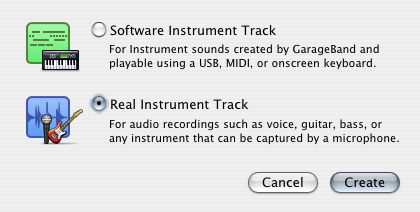
Now make a new ‘real instrument’ track in GB. This will be used to receive audio from Ventrilo by way of the Soundflower virtual audio device.Â
Â
 Â
Â
Now make a new ‘real instrument’ track in GB. This will be used to receive audio from Ventrilo by way of the Soundflower virtual audio device.Â
Â
 Â
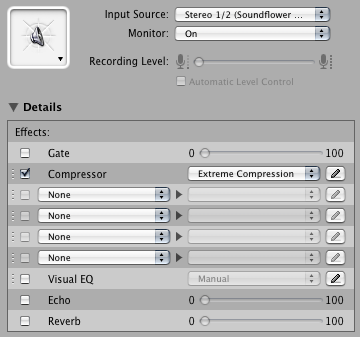
On the right side of the GB window, enable monitor mode (this allows you to hear what’s coming through the input without actually recording). Click the triangle next to “Details” to reveal the audio plugin configuration. Enable the compressor, and choose the ‘extreme compression’ preset.
Â
Â
On the right side of the GB window, enable monitor mode (this allows you to hear what’s coming through the input without actually recording). Click the triangle next to “Details” to reveal the audio plugin configuration. Enable the compressor, and choose the ‘extreme compression’ preset.
Â
 Â
Â
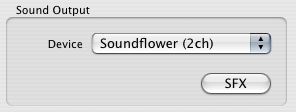
Done with GB, now all that’s left is to configure Vent to send audio to the virtual device. Click Setup in Vent, and set the output to Soundflower 2ch.
Â
Â
Â
Â
Done with GB, now all that’s left is to configure Vent to send audio to the virtual device. Click Setup in Vent, and set the output to Soundflower 2ch.
Â
  Â
That’s it!Â
Â
That’s it!Â
 Â
Â
Now make a new ‘real instrument’ track in GB. This will be used to receive audio from Ventrilo by way of the Soundflower virtual audio device.Â
Â
Â
On the right side of the GB window, enable monitor mode (this allows you to hear what’s coming through the input without actually recording). Click the triangle next to “Details” to reveal the audio plugin configuration. Enable the compressor, and choose the ‘extreme compression’ preset.
Â
Â
Â
Done with GB, now all that’s left is to configure Vent to send audio to the virtual device. Click Setup in Vent, and set the output to Soundflower 2ch.
Â
Â
Â
That’s it!Â
Don’t we need to do something to soundflower? Turn it on. choose its input and output?
Comment by cathiecj — August 4, 2008 @ 11:37 am
@cathiecj: Nope, just install it and restart. SoundFlower itself doesn’t really have any configuration. It’s a virtual audio device, so other applications can be configured to use SoundFlower as an audio source / destination, as is done in this article for GarageBand and Ventrilo.
Comment by Jindi — August 4, 2008 @ 11:42 am
Do you need to have garage band turned on while using ventrilo?
Comment by simplekitty — August 25, 2008 @ 4:13 pm
@simplekitty: Yes, you do need to have Garage Band running. If Garage Band is not running, you won’t hear any audio from Ventrilo. The audio path is like this: Ventrilo –> SoundFlower –> Garage Band. Think of SoundFlower as a virtual audio cable. In this case, one end of the ‘cable’ is connected to Ventrilo’s output, and the other end is connected to Garage Band’s input. If you don’t have Garage Band running, the audio is still being sent from Ventrilo through SoundFlower, but the ‘output’ end of the ‘cable’ is plugged into a ‘stereo’ that’s turned off :)
Comment by admin — August 25, 2008 @ 4:24 pm
“On the right side of the GB window, enable monitor mode (this allows you to hear what’s coming through the input without actually recording). Click the triangle next to “Details†to reveal the audio plugin configuration. Enable the compressor, and choose the ‘extreme compression’ preset.”
————————–
Somehow, when I get to this step, there’s no triangle to expand the options. Here’s how my screen looks:
http://skitch.com/telene/n885i/gband-no-options
How do I enable compression now? :”/
Comment by telene — November 12, 2009 @ 10:58 am
Hi telene,
I probably left out a couple steps. Try this:
1) Double-click the track icon for your audio track (on the far left). This should reveal the settings for that track on the right.
2) Click the “Edit” tab on the right. This should reveal the plugin settings for that track.
Cheers,
-Jindi
Comment by Jindi — November 12, 2009 @ 11:11 am
Once I have completed your steps, Do I have to do anything with GB. (Do I save it, Do I have to start the program up with ventrilo)
Comment by Fnelli — December 12, 2009 @ 6:00 am
Yeah, save the Garage Band project to a file to preserve the input / effects settings. If you quit and relaunch, it should automatically open that file. If you use other project files, then just re-open your ‘vent’ file whenever you want to use it!
Comment by Jindi — December 13, 2009 @ 11:32 am